How to Set Up Email in Outlook
- Launch Microsoft Outlook on your computer.
- If you are opening it for the first time, you'll directly see the window as shown below.
- Enter your Email Address.
- Tick the box that reads Let me set up my account manually.
- Click on Connect.
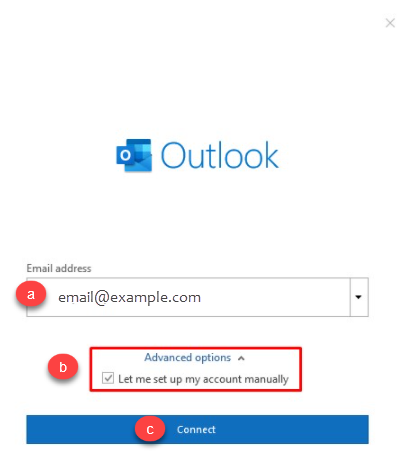
- If you have already configured email accounts on your Outlook, you can click on File Menu > Add Account.
- Select POP or IMAP(recommended) depending on the Incoming Protocol you prefer.
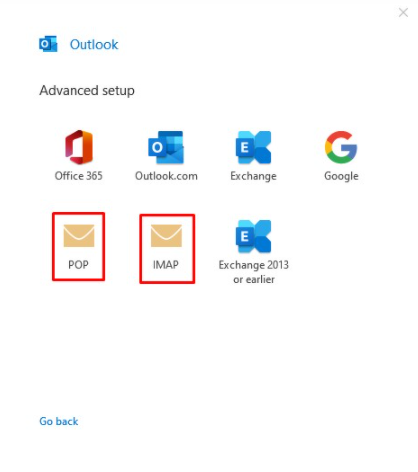
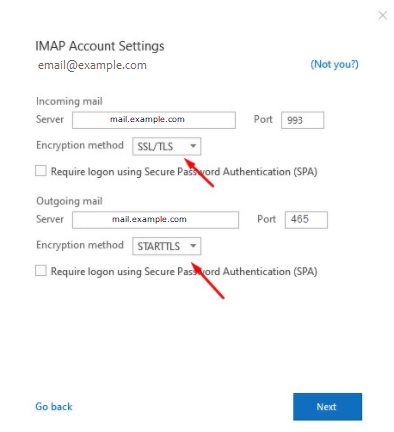
- Based to your preference, select the hostnames, port numbers, and encryption methods for both the Incoming Mail and Outgoing Mail servers from the table below, and then click on Next.
| SSL Email Port Settings |
| Outgoing Server SMTP |
smtp.example.com |
Port 25/587 |
| Incoming Server IMAP |
imap.example.com |
Port 993 |
| Incoming Server POP |
pop.example.com |
Port 995 |
| Non-SSL Email Port Settings |
| Outgoing Server SMTP |
mail.example.com |
Port 25/587 |
| Incoming Server IMAP |
mail.example.com |
Port 143 |
| Incoming Server POP |
mail.example.com |
Port 110 |
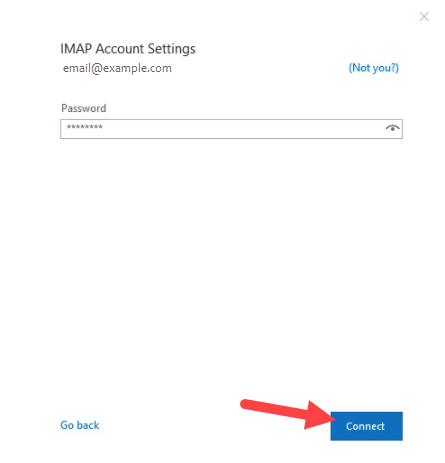
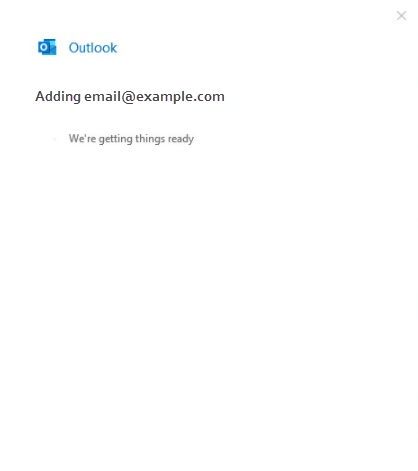
- Click Connect after entering the password for your email account.
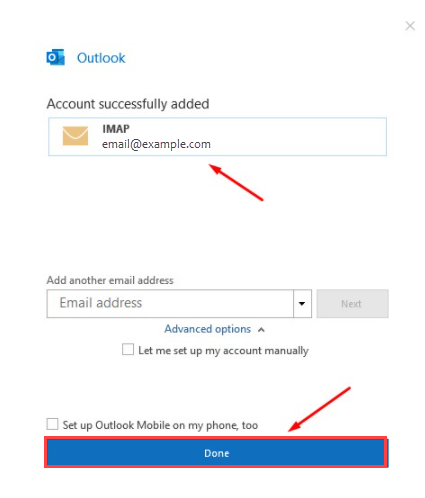
- Click on Done to conclude the process.
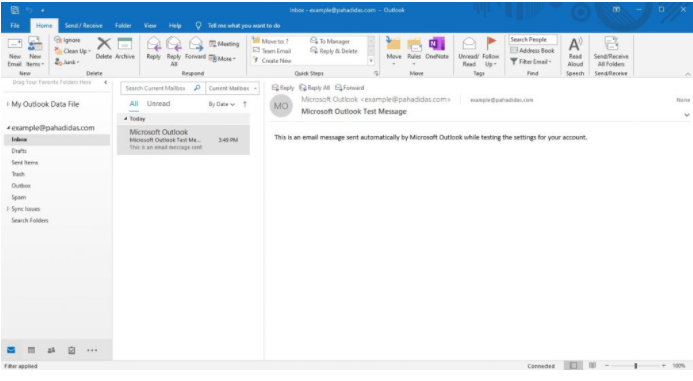
- You should be able to start sending and receiving messages using your Email Client.
Please rate this article to help us improve our Knowledge Base.
