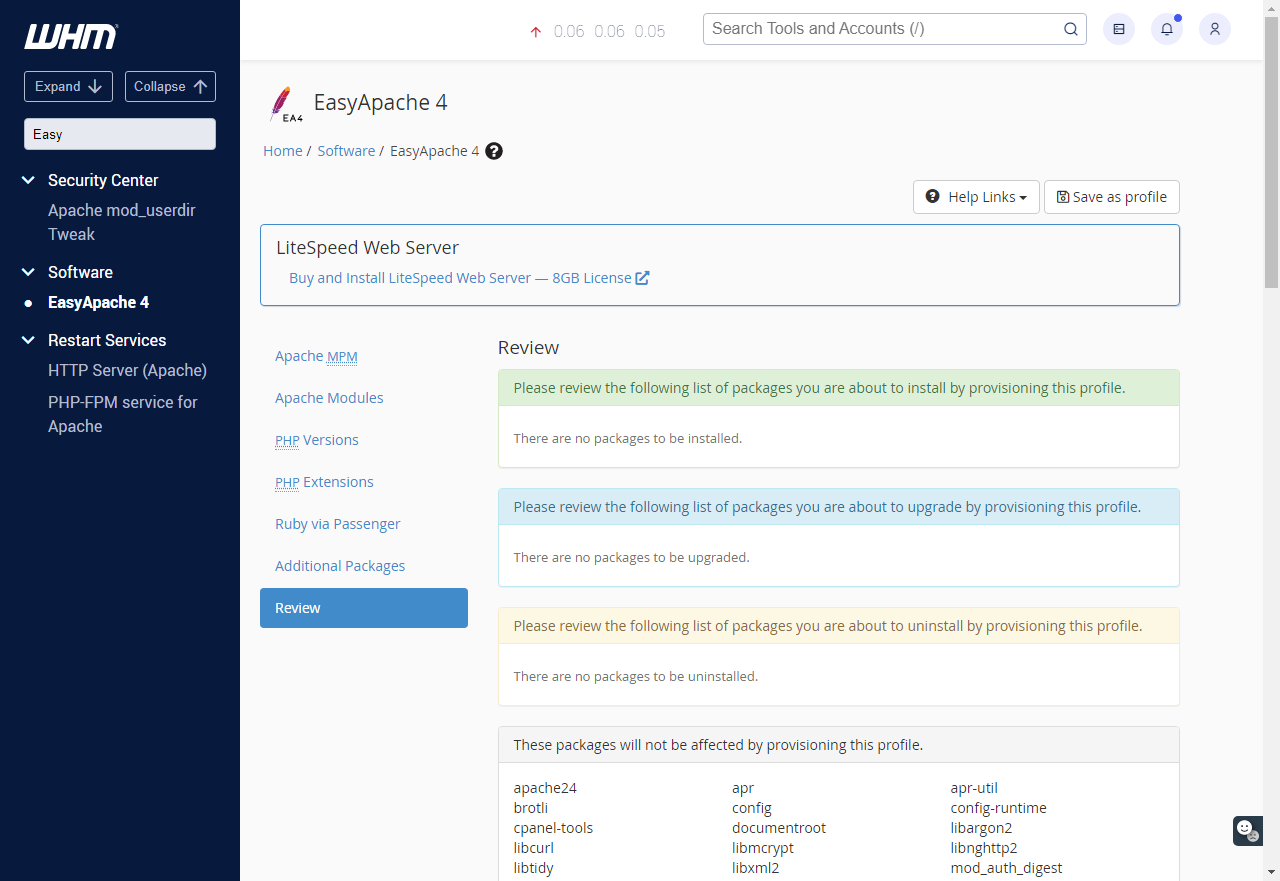
Once you have accessed EasyApache and chosen a profile, you can select your build options. Each section provides access to a set of toggle switches used to enable that option. You can skip one or more sections and go straight to the Review step at any point. Most sections have a search bar at the top to allow you to find the specific option you need.
Note: Changing options outside of the PHP Versions and PHP Extensions sections should only be done by experienced administrators.
Apache Multi-Processing Modules (MPM) determine how Apache will listen to the network and accept and handle website requests. For example, the Worker MPM turns Apache into a multi-process, multi-threaded web server, where each process has multiple threads.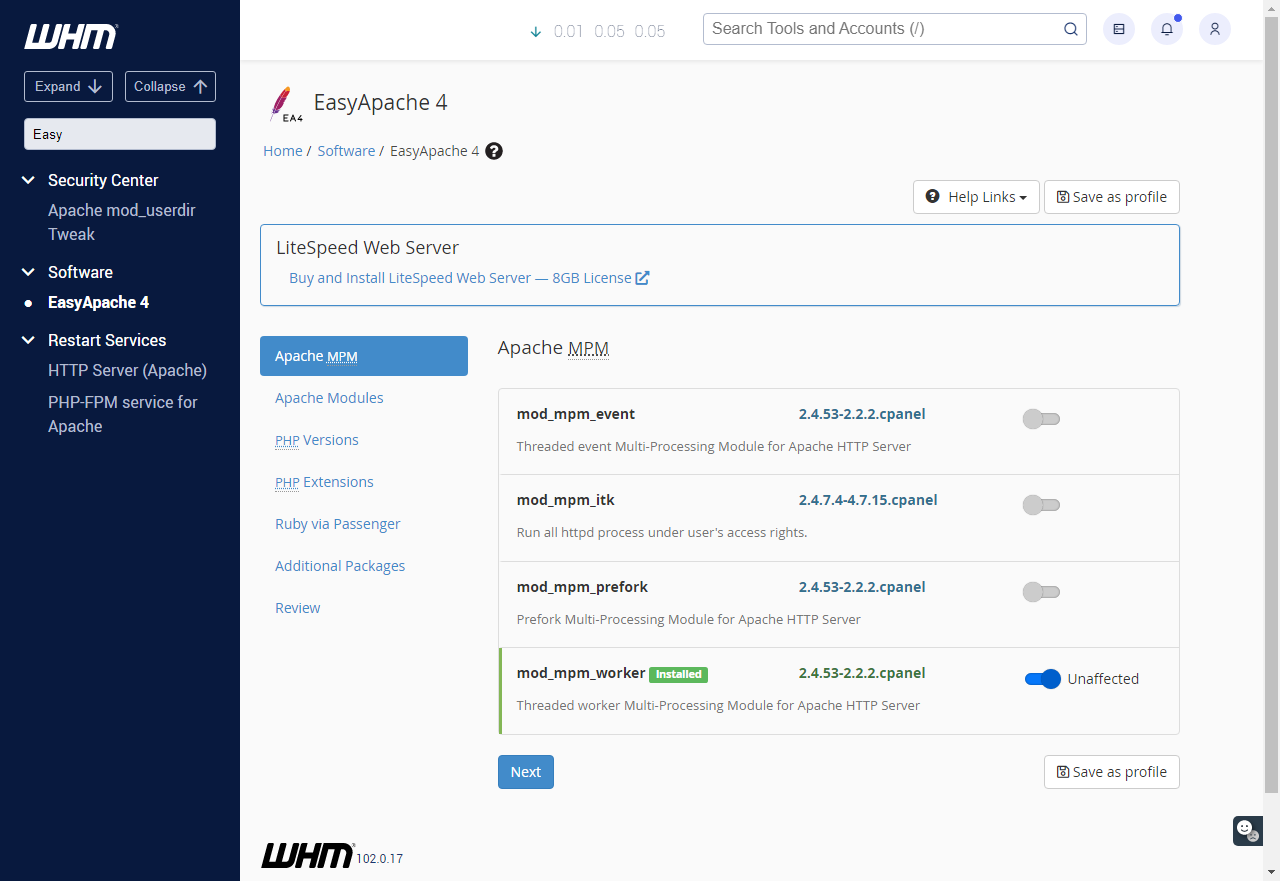
This section allows modules to be added or removed from Apache (the webserver process).
This controls the versions of PHP that are available on your server. Once a version has been installed, it can be applied to a particular domain through WHM in the Software > MultiPHP Manager section. On selection, you'll be asked whether to install just the default version or the version plus the extensions the system detects as active on other installed PHP versions. Generally, choosing the latter would be recommended.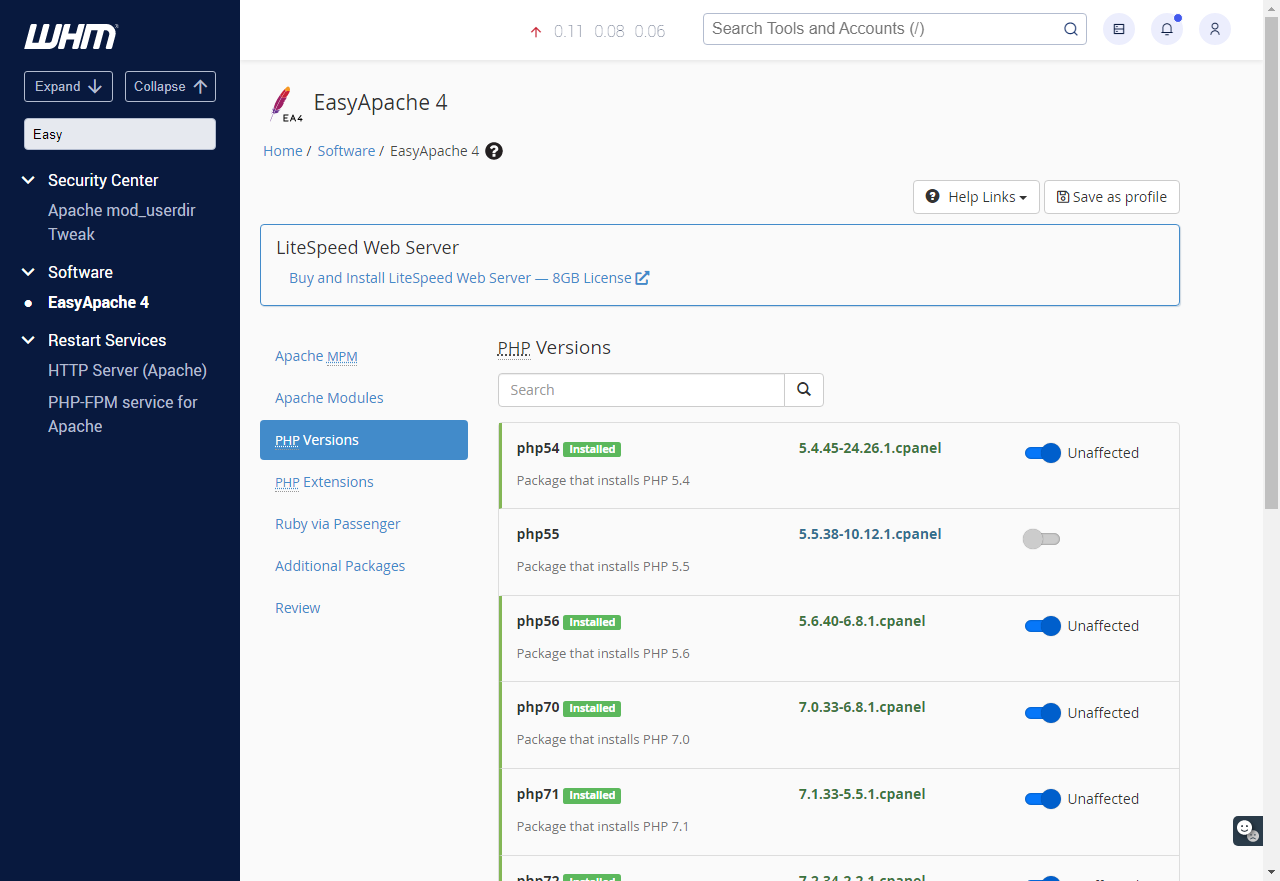
Additional PHP extensions can be added here. Note that these are for a particular PHP version: if you have multiple versions of PHP active on your server, you may need to install the extension for each version. You can use the checkboxes at the top to filter for extensions on a specific version or versions of PHP.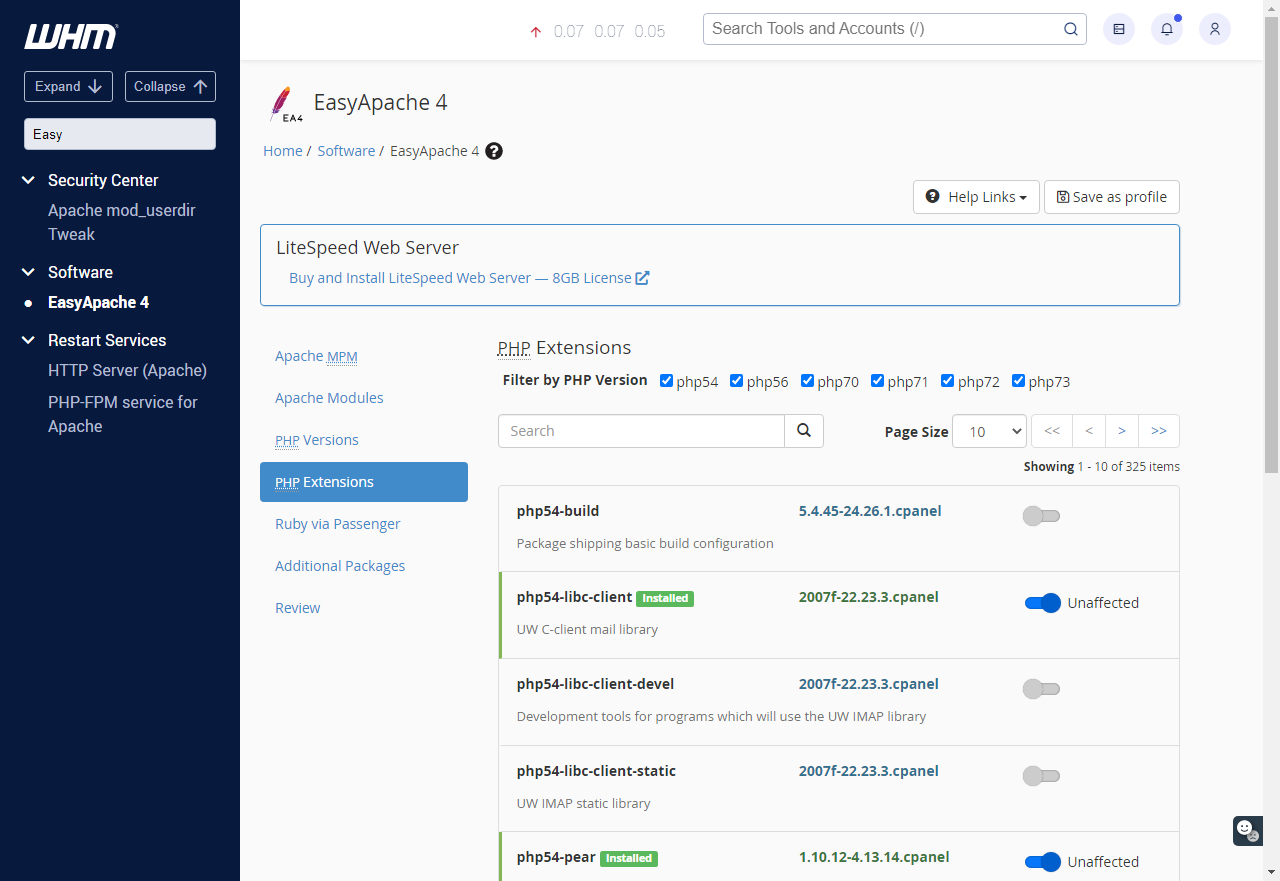
This can be used to install Ruby on the server. However, support does not offer any detailed help with Ruby applications beyond this initial installation.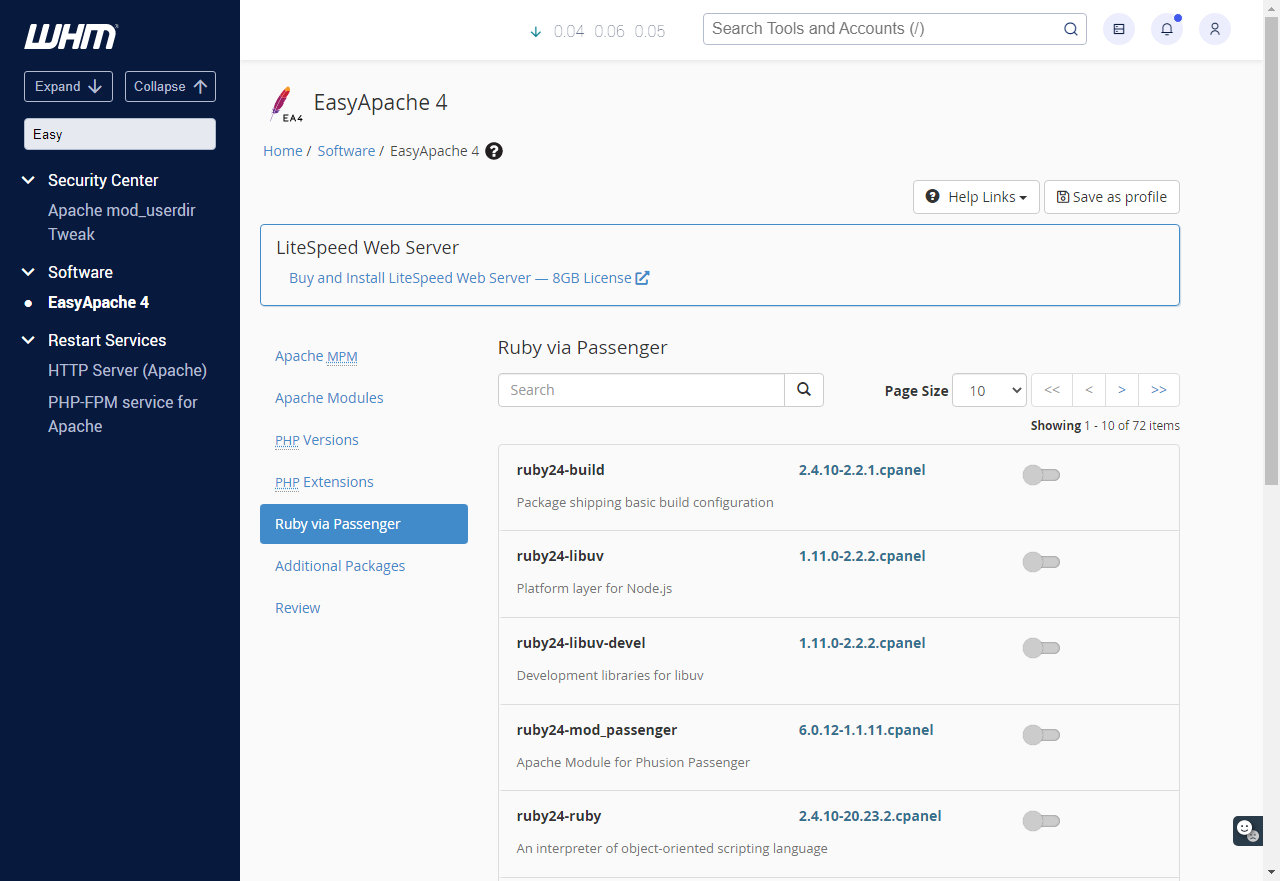
This can be used to install Tomcat and Node.js. However, please note that support does not offer detailed help with these applications beyond the initial installation.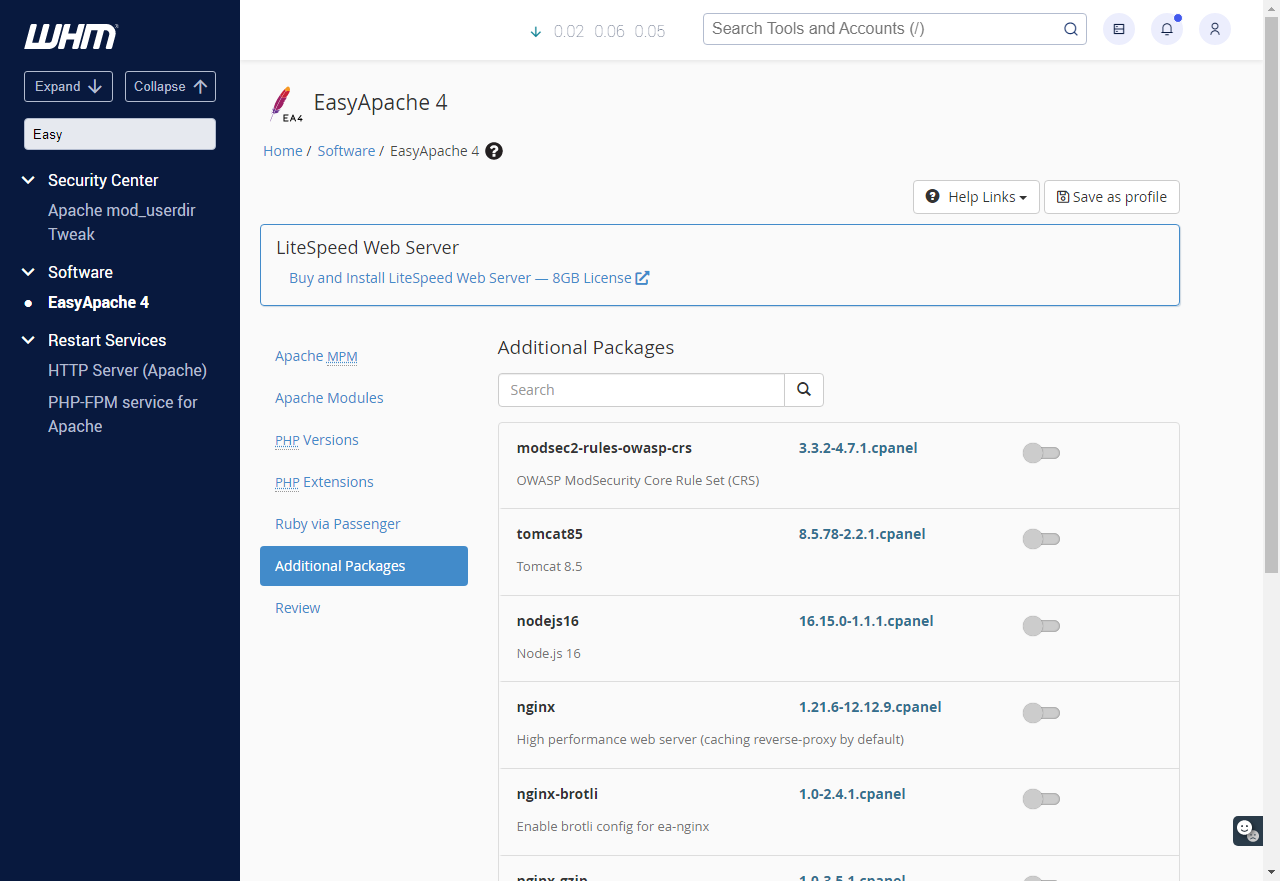
Finally, this will show you the packages you have selected for installation onto the server and packages that will be removed, and ones that will not be changed. If necessary, you can still go back and make any changes to these. When you are ready to proceed, click the Provision button at the bottom of the screen.