What is SSH Access and How to Enable It in Your Hosting Account
- open cPanel
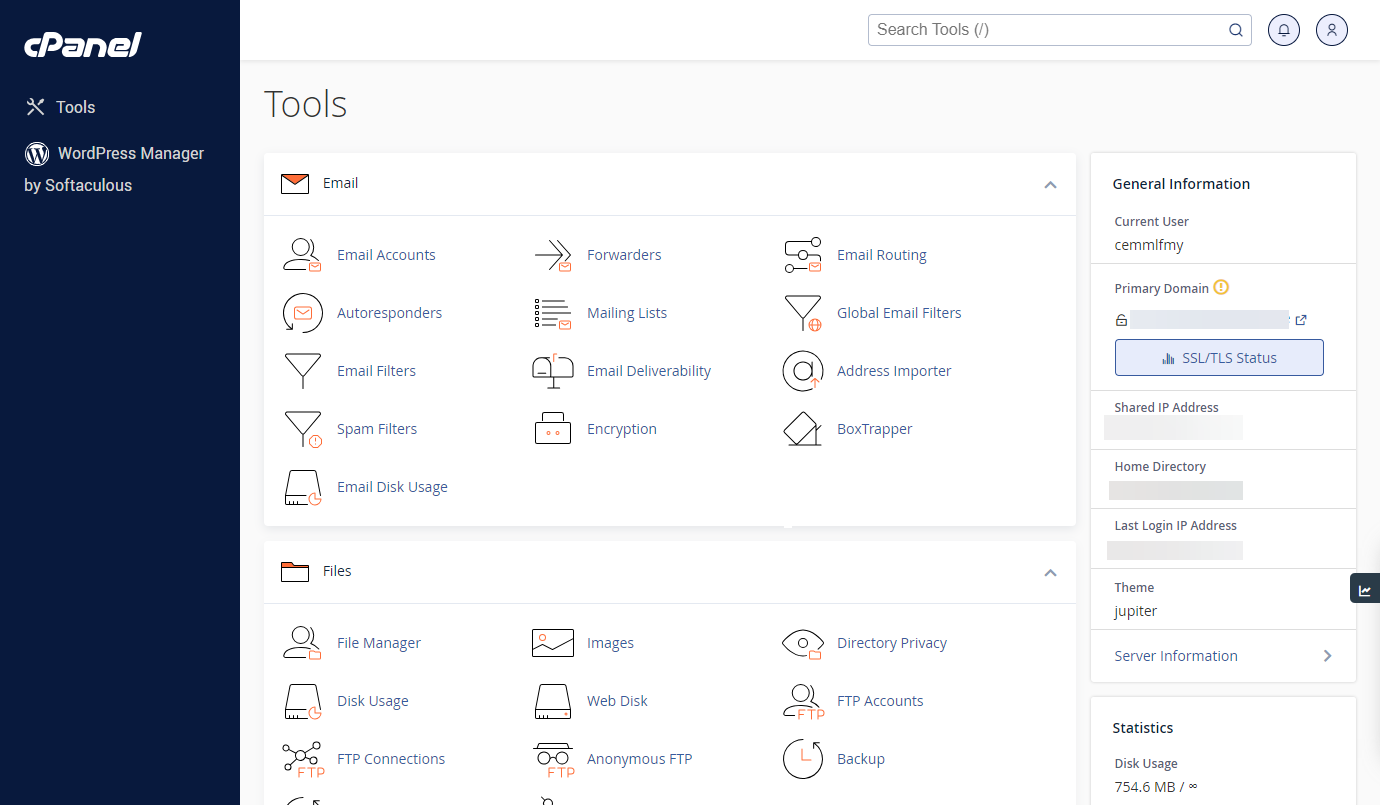
- Scroll down and locate the Security section, then click SSH Access.
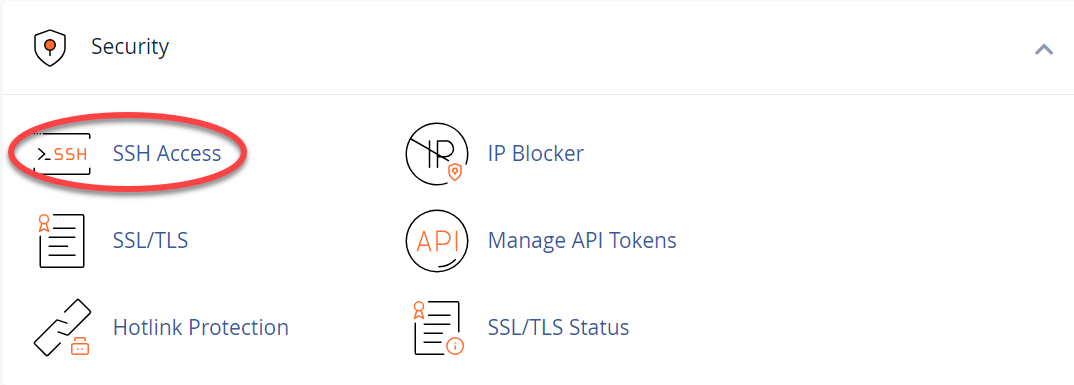
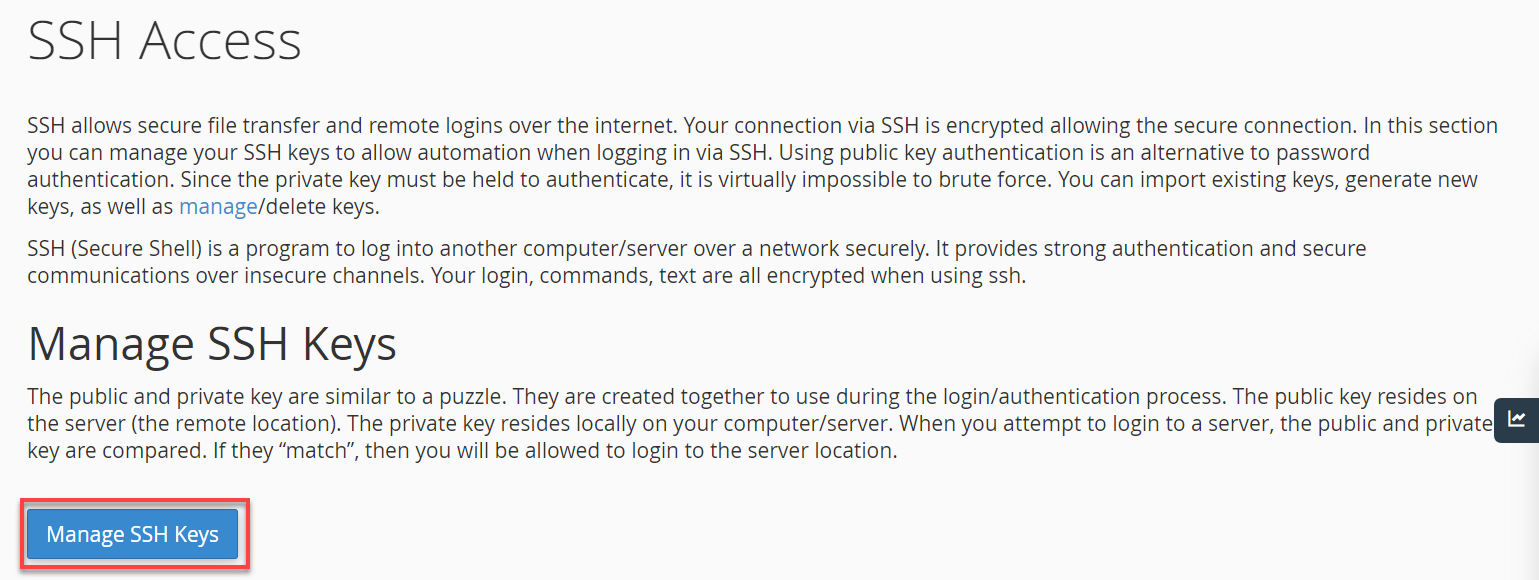
- Click Manage SSH Keys.
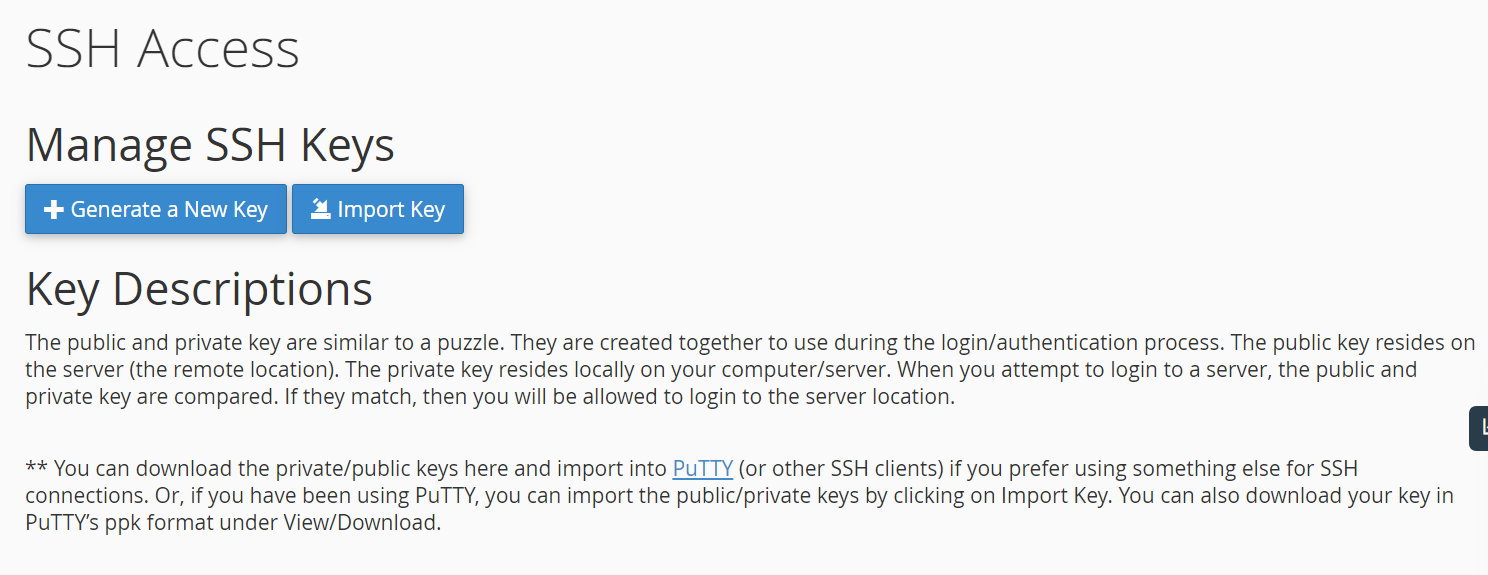
- You can:
- Generate a New Key - Use this if you don't have an SSH key yet to use for authentication.
- Import Key - You may have already generated an SSH public/private key pair. You can import them by pasting the keys into the empty fields on your screen. You don't have to import both keys. Importing a public OR private key is acceptable if that's all you need on the server.
VPS and Dedicated Servers: Enabling SSH Command from WHM
- Dedicated and VPS customers automatically have root SSH access. Root shell allows you to change anyone and anything on your server.
- If you want to activate SSH on a sub-account (separate cPanel), access WHM with your root login and click the Manage Shell Access link. There, you can enable normal and jailed shells for your clients; port 22 for a normal and jailed shell.
- If you have multiple cPanels that need SSH, you can activate them all within root WHM.
Tip: For VPS/Dedicated Servers, we have two methods of accessing your server:
- Option 1: via Console and Option
- Option 2: via SSH using third-party Terminal Programs
How to use SSH Access
Using the directions below, you would use port 22 to connect to the server via SSH and log in with username "root" and your WHM password. If you enable shell access for individual cPanels, the SSH username and password would be the same as the cPanel username and password for those accounts. Root SSH will allow you to access the server processes.
Option 1. Connecting to your server via Web Console for SSH
We offer a Web Console for SSH terminal access, which simplifies the process by only requiring users to know the root username and server password.
Port 22 would be used for shared and reseller accounts; 22 is the default for Dedicated and VPS. Dedicated or VPS can log in with the root WHM username and password.
Windows
To access SSH:
- Download WinSCP or PuTTY.
- Enter your IP address and the appropriate port number.
- Log in with your cPanel username and password.
Linux
- To connect, run the following ssh command from a terminal:
ssh -p 22 cpanelusr@ip.add.re.ss
- Replace cpanelusr with your username and ip.add.re.ss with your IP address.
Mac
- To open the terminal in Mac, go to Applications → Utilities → Terminal.
- Type in the following ssh command:
ssh -p 2222 cpanelusr@ip.add.re.ss
- Replace cpanelusr with your username and ip.add.re.ss with your IP address.
