
Access Remote MySQL in cPanel
Log in to your Thamara Cloud cPanel.
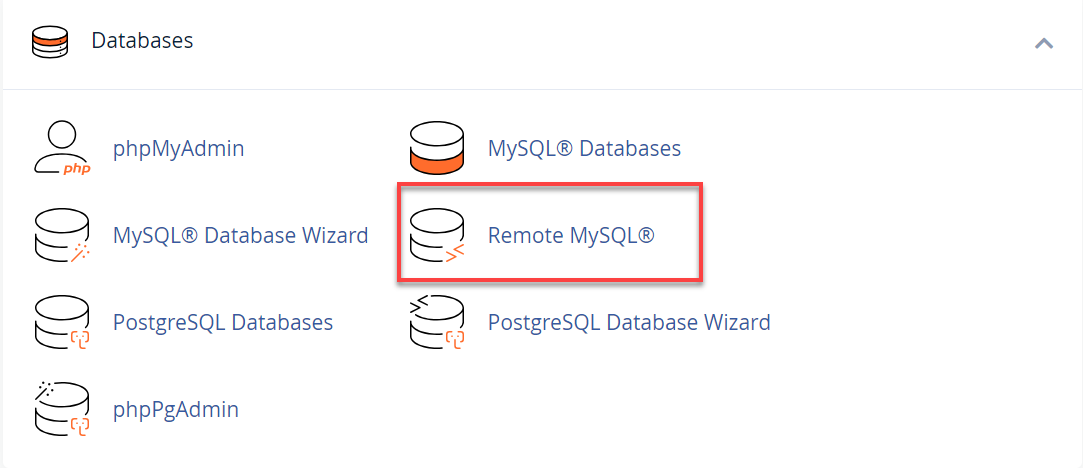
Scroll down to the Databases section.
Click Remote MySQL®.
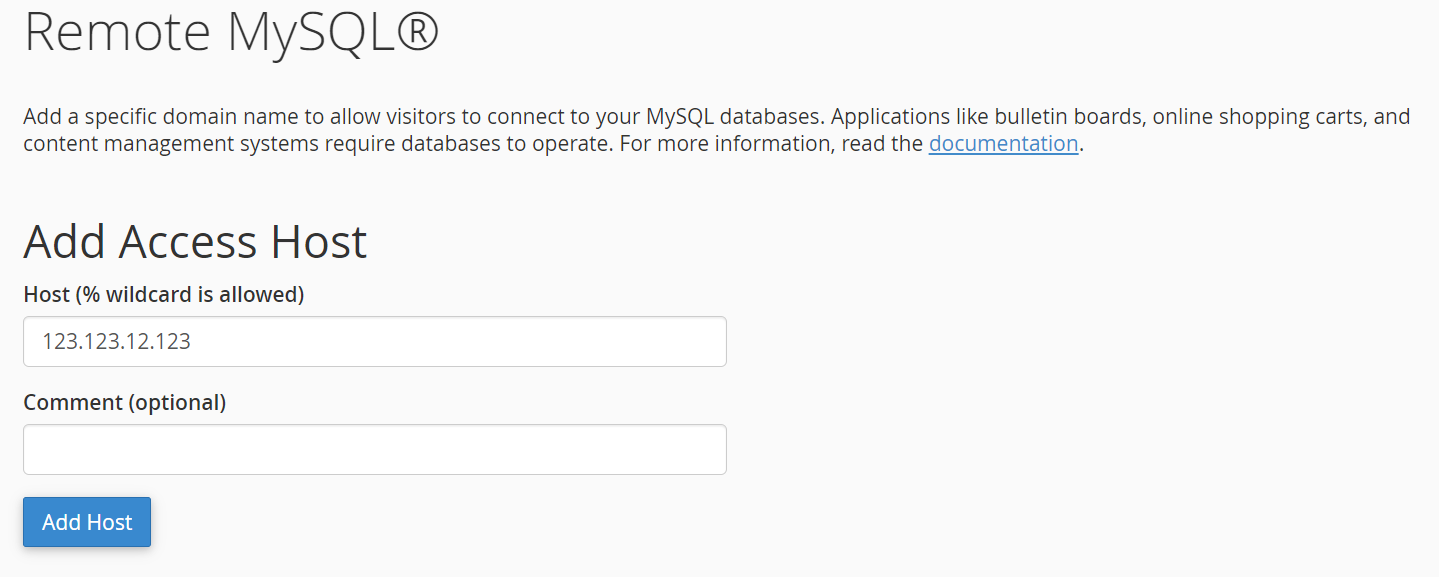
In the Add Access Host field, enter the IP address of the server or computer you want to allow access from.
Example: 123.123.12.123
You can use a wildcard (e.g., 192.168.0.%) to allow a range of IPs, but only if you trust those sources.
Optionally, add a short note in the Comment field for reference.
Click Add Host to apply changes.
To edit or remove existing IPs:
Navigate to the Manage Access Hosts section.
Click Update to edit or Delete to remove an IP from the list.
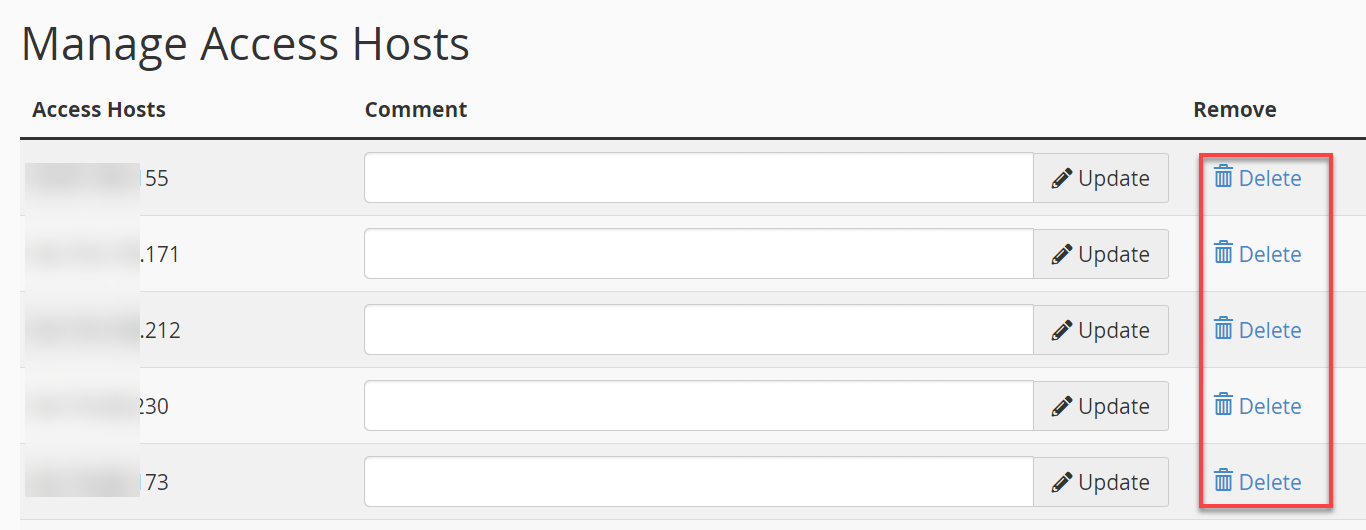
This ensures you maintain control over which devices can access your databases.
Once the IP is added, connect to your database using your preferred MySQL client with the following details:
| Setting | Value |
|---|---|
| Host Name | Your Thamara Cloud server IP |
| Database Name | cpanelUsername_databaseName |
| Username | cpanelUsername_databaseUser |
| Password | Your database user password |
| Port | 3306 |
If you encounter connection issues, verify that:
The correct IP address is whitelisted
The username and password are correct
Port 3306 is open on your local network