
Log in to your Thamara Cloud cPanel.
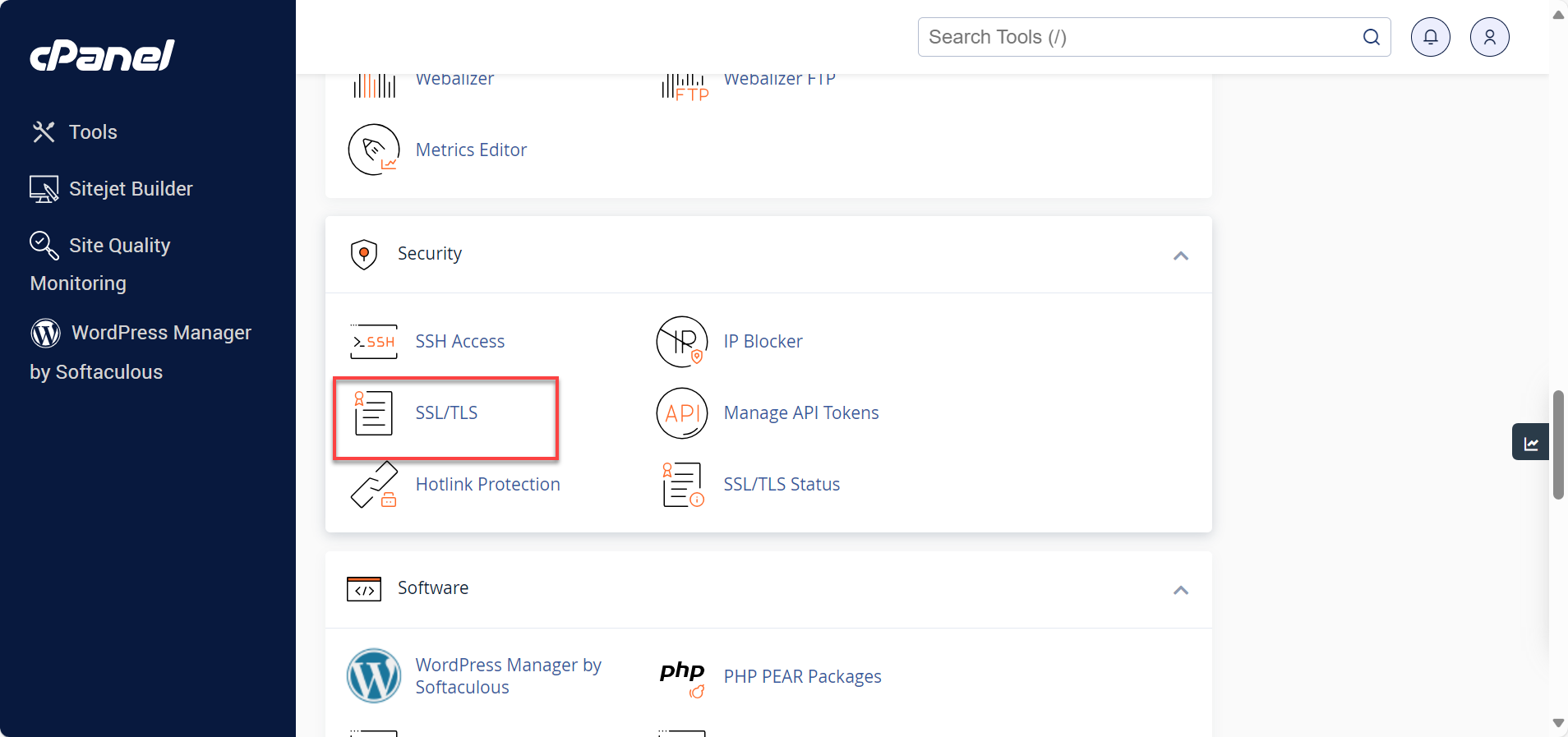
Scroll to the Security section.
Click SSL/TLS to open the SSL Manager.
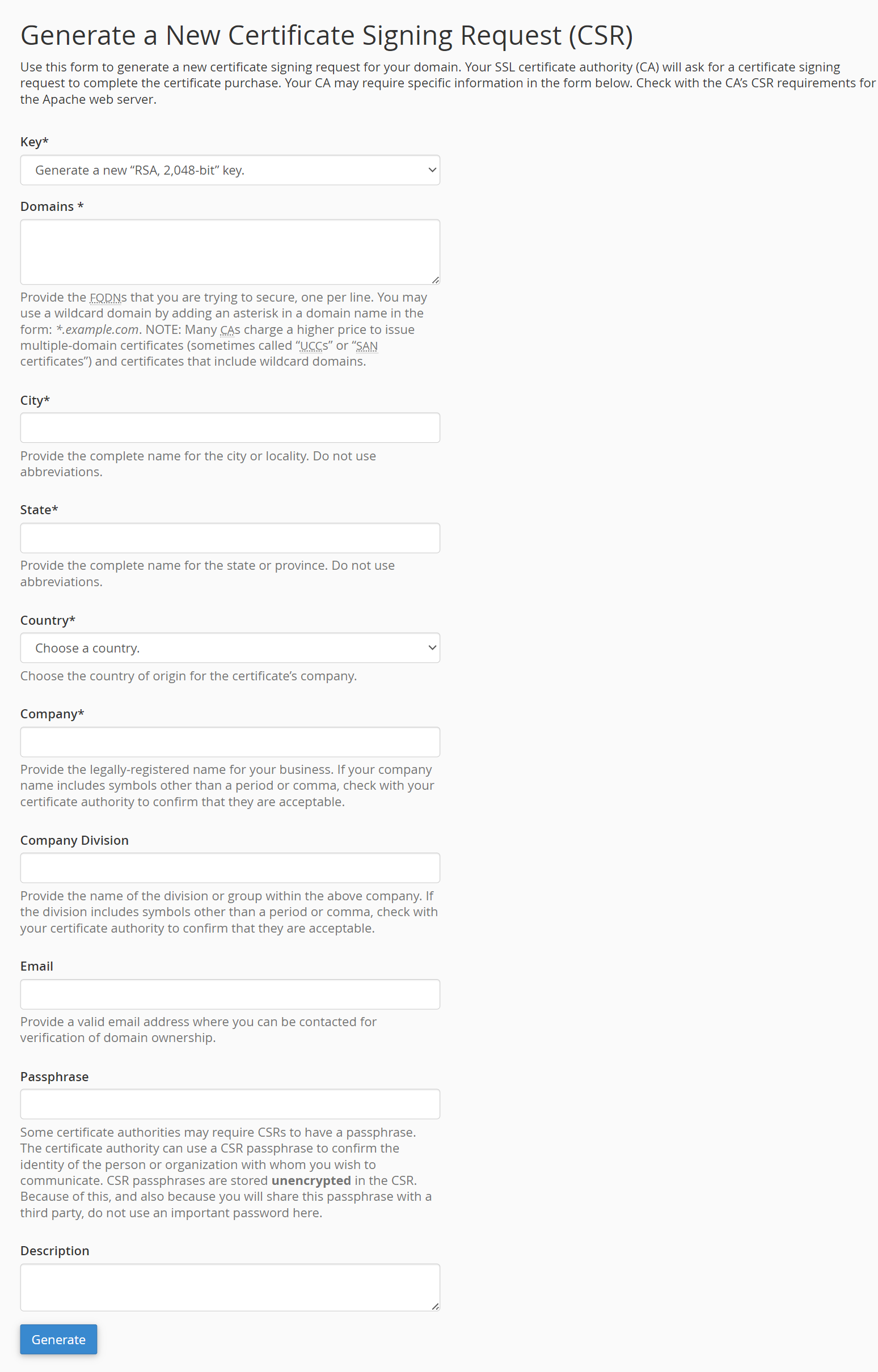
Under Certificate Signing Requests (CSR), click Generate, view, or delete SSL certificate signing requests.
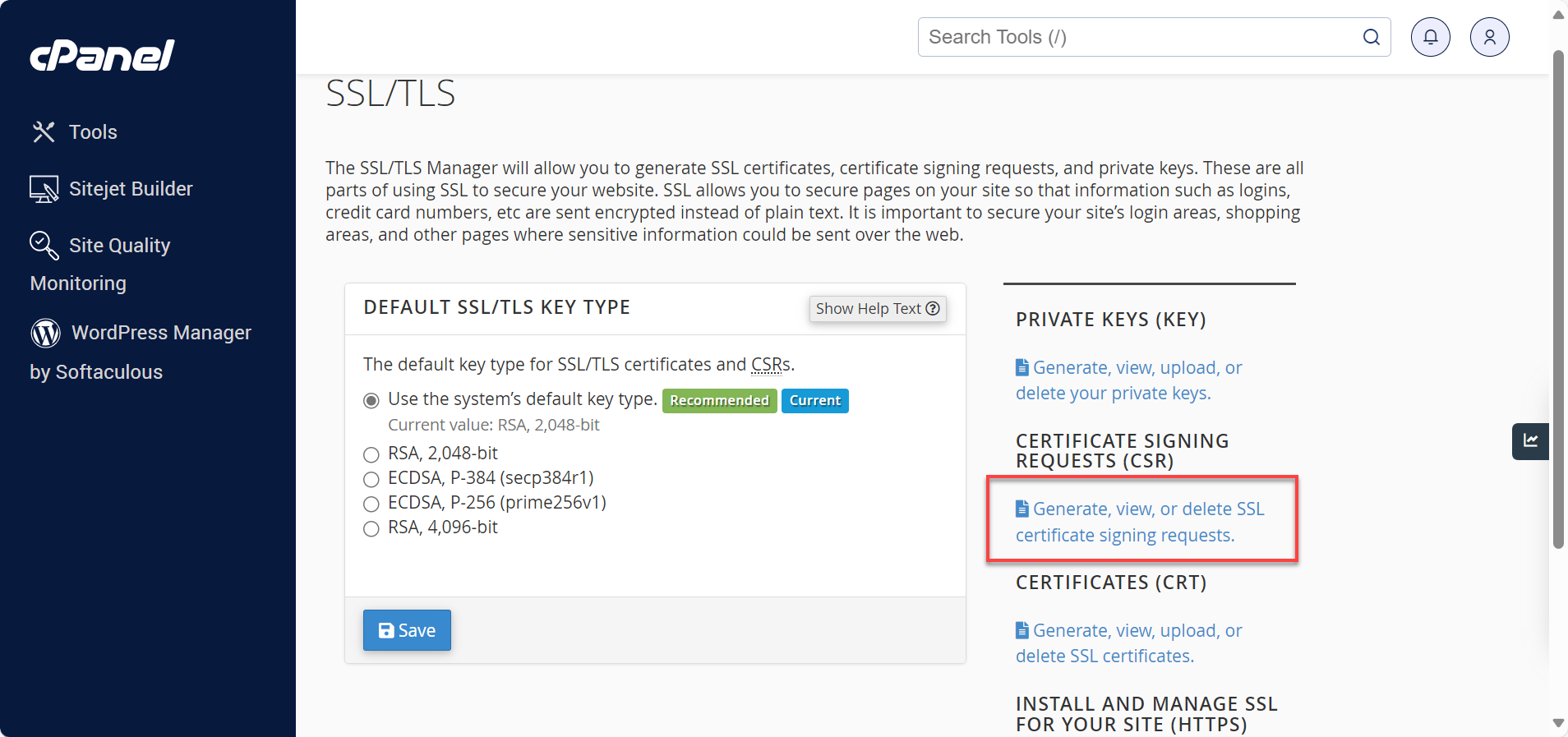
You’ll be redirected to a form where you can fill in the required information:
Key: Select Generate a new “RSA, 2048-bit” key.
Domains: Enter the domain name (e.g., example.com). You can also use a wildcard like *.example.com if needed.
City / State / Country: Enter your business location details.
Company: Provide the legal name of your organization.
Email: Add a valid contact email address.
Passphrase & Description: Optional but recommended for identification.
Click Generate.
A new CSR code will be displayed on the screen. Copy the entire block including:
Submit the generated CSR code to your Certificate Authority (CA).
They will verify your details and issue a CRT file (certificate) and possibly a CA Bundle.
Once you receive those files, you’re ready to install the certificate on your hosting server.
Go back to SSL/TLS Manager in cPanel.
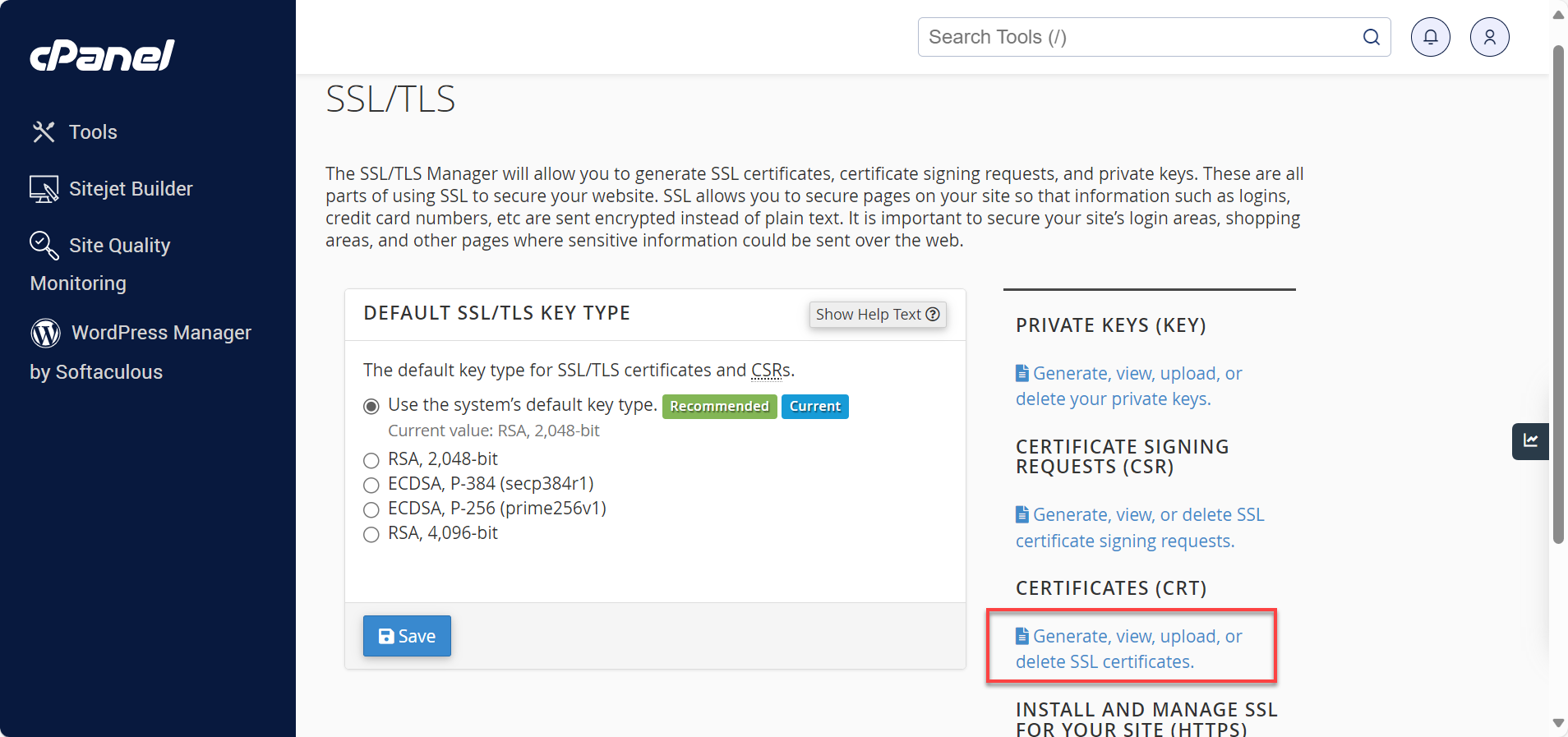
Under Certificates (CRT), click Generate, view, upload, or delete SSL certificates.
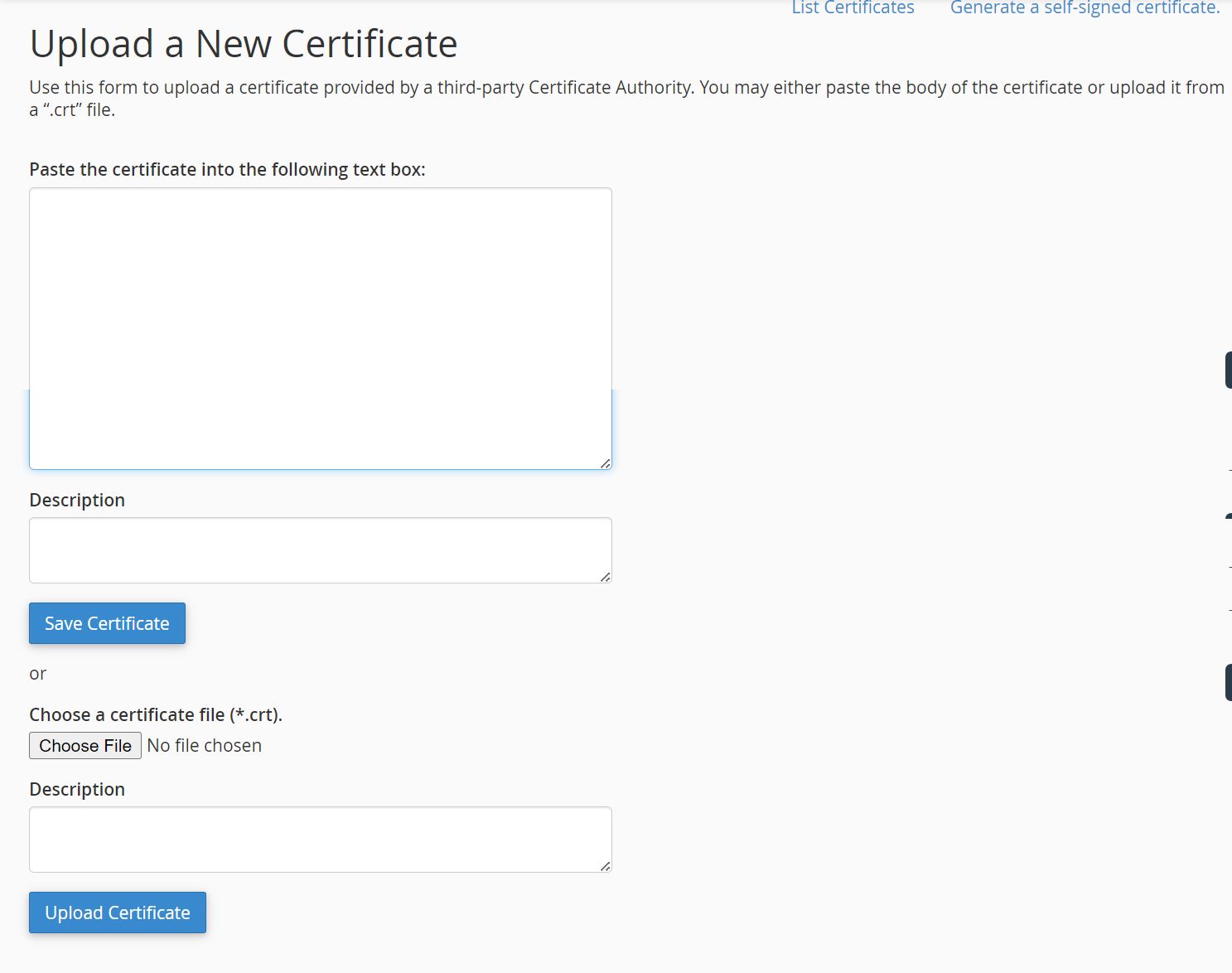
In the Upload a New Certificate section, either:
Paste the certificate content into the text box, or
Click Choose File to upload the .crt file you received.
(Optional) Add a short Description for reference.
Click Save Certificate or Upload Certificate.
After uploading, contact Thamara Cloud Support via Live Chat or Phone to request installation of your KEY and CRT files on the server.
If a CA Bundle was provided by your SSL vendor, include that as well.
Keep a secure backup of your KEY, CRT, and CA Bundle files. They can be reused on any server hosting the same domain.